> ## Documentation Index
> Fetch the complete documentation index at: https://hilos-40.mintlify.site/llms.txt
> Use this file to discover all available pages before exploring further.
# Quick Replies
Quick replies in Hilos are a powerful feature designed to streamline your support workflows. They allow you to create predefined responses that can be easily accessed and sent during conversations. Quick replies help you save time, ensure consistency, and improve the efficiency of your support team.
## What are Quick Replies?
Quick replies are predefined responses that can be used to answer frequently asked questions or provide standard information quickly. They can be either text replies or template replies, and they support automatic variable replacement to personalize the response for each customer.
## How to Create and Use Quick Replies
### Creating Quick Replies
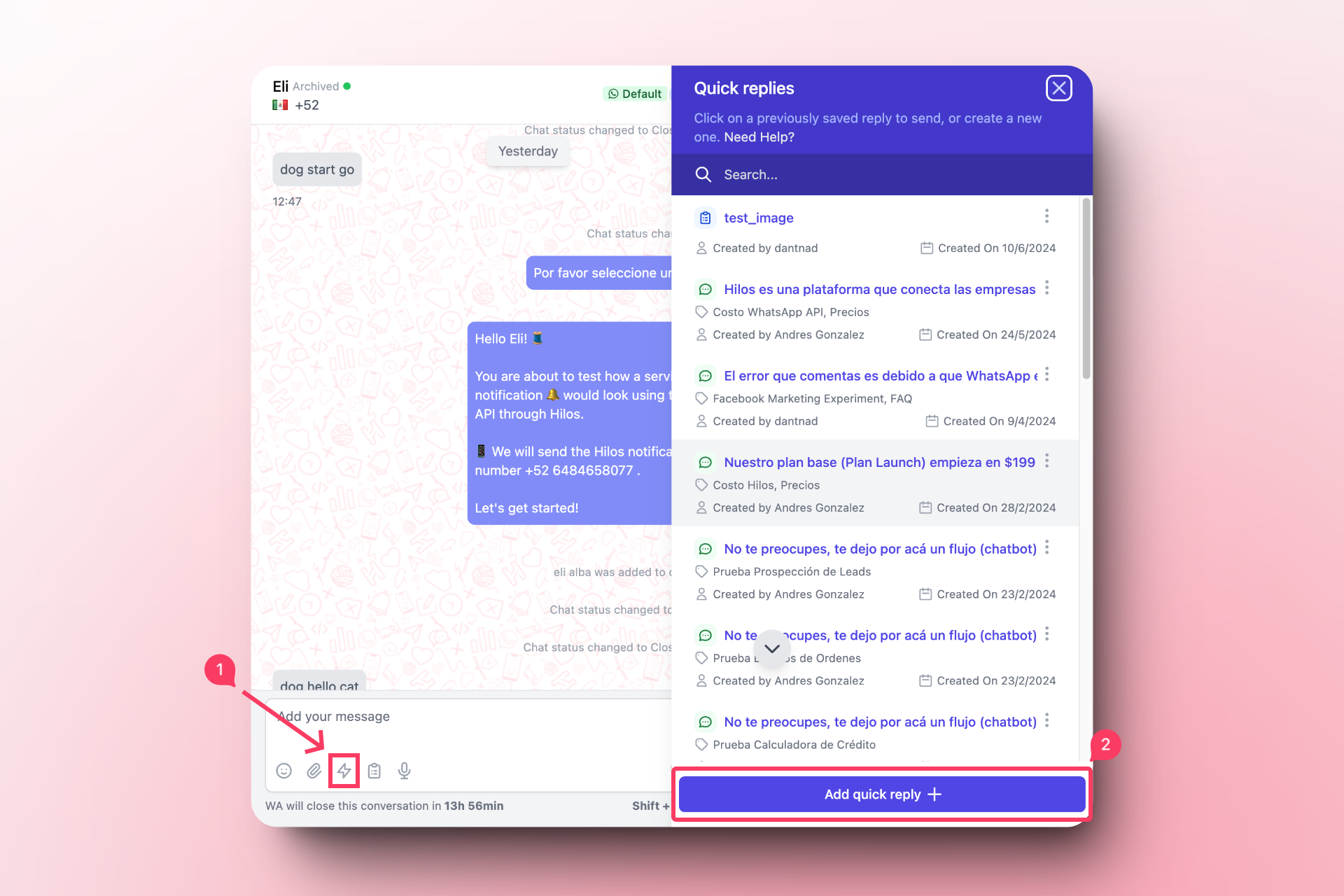
To create a quick reply, follow these steps:
Open a conversation in the Inbox.
Click on the quick replies button (the lightning bolt icon) located at the bottom of the conversation.
In the sidebar that appears, choose whether you want to use a text reply or a template reply.
* For a text reply, write your response in the text editor and add any variables by clicking on "Add variable."
* For a template reply, select the desired template from your approved templates.
Click on "Save quick reply" to save your response.
### Using Quick Replies
To use a quick reply, follow these steps:
Go to the Inbox and select the conversation where you want to use a quick reply.
In the text box, type `/` to bring up the quick replies.
As you type, the quick replies that match the content or tags will appear on top of the text box. Select the desired quick reply from the list.
The quick reply will be inserted into the text box with any variables automatically replaced. You can then send the message to the customer.
### Benefits of Quick Replies
Automatic Variable Replacement: Whether you use a text reply or a template reply, you can add variables that are automatically replaced when the quick reply is used. This allows you to personalize responses without having to manually enter the customer's or your agent's details each time. For example, you can include variables for the customer's name, order number, or any other relevant information.
Efficient Response Management: Quick replies help you manage responses more efficiently by allowing you to store and organize common replies. This reduces the time spent typing out responses to frequently asked questions and ensures that your team provides consistent information to customers.
Easy Access and Usage: You can easily find and use quick replies by typing `/` in the text box. This will show the quick replies on top of the text box and match them to the content or tags as you type. You can also search for quick replies using tags, making it easy to find the right response for any situation.
## Conclusion
Quick replies in Hilos are a valuable tool for improving the efficiency and consistency of your support workflows. By creating and using predefined responses, you can save time, ensure accurate information, and provide a better experience for your customers. Start using quick replies today to enhance your support operations and streamline your team's workflow.
If you have any questions or need assistance with quick replies, please don't hesitate to contact our support team.